
Motocross The Game Best Settings for Smooth, Consistent Laps
The best Motocross The Game settings for performance, visibility and control: graphics, camera, audio cues, controller response and network setup.
Prioritise a locked frame rate over maximum visual quality. Use a chase camera close enough to read the front wheel, keep motion blur low or off, raise the audio mix so you can hear the engine and tyres, and set your controller deadzone just above the point where the bike drifts. Consistent frames matter more than pretty dirt.
Motocross The Game is built in Unreal Engine 5, with dynamic lighting and detailed dirt rendering. Those features look excellent in a screenshot, but they also cost frame time. On a simulator where a missed rut costs half a second, a stable 60 or 120 frames per second is worth more than an extra shadow cascade.
This guide is written for the Early Access build arriving on November 16, 2026, so treat individual menu labels as a starting point. The principles will survive patches; the exact names may not.
Start with a frame target, not a graphics preset
Pick the refresh rate you can actually hold. If your monitor runs at 144 Hz but your GPU averages 90 frames per second, you will get stutter and inconsistent input latency. Cap the game below your average, or lower settings until the frame time graph is flat.
A stable 60 is better than an unstable 90. A stable 120 is better than a fluctuating 144. The bike reacts to small inputs, and inconsistent frame pacing makes those inputs feel different from corner to corner.
Use these priorities when you need to free up performance:
- Shadows and contact shadows.
- Screen-space reflections.
- Foliage and crowd density.
- Post-processing effects such as motion blur and depth of field.
- Resolution scale.
Texture quality is usually the last thing to cut if you have enough VRAM, because it affects how clearly you can read the dirt surface. On a 16 GB card, keep textures high and cut shadows first.
Resolution and upscaling
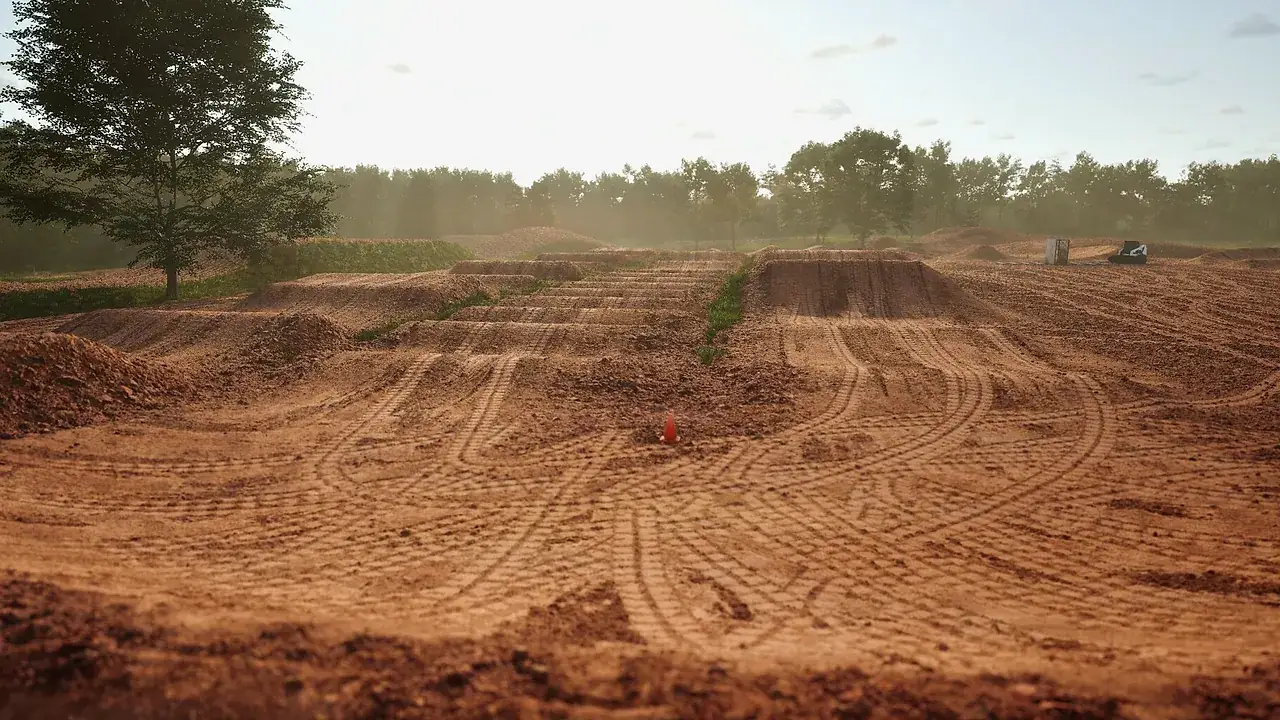
Native resolution gives the cleanest image, but upscaling is a reasonable trade on mid-range hardware. If the game offers a quality upscaling mode, start there and compare the front wheel and rut edges. A soft image makes it harder to judge the front wheel's angle in a rut.
Do not combine aggressive upscaling with heavy motion blur. The result is a smeared image exactly where you need detail. If you use upscaling, keep motion blur off or very low.
Camera: close enough to read the front wheel
The default chase camera is a good starting point, but many riders prefer it slightly closer and slightly lower. You want to see the front wheel contact patch, the rut and the exit of the corner in the same frame. A camera that is too high hides the rut; a camera that is too far back makes the bike feel like it is sliding.
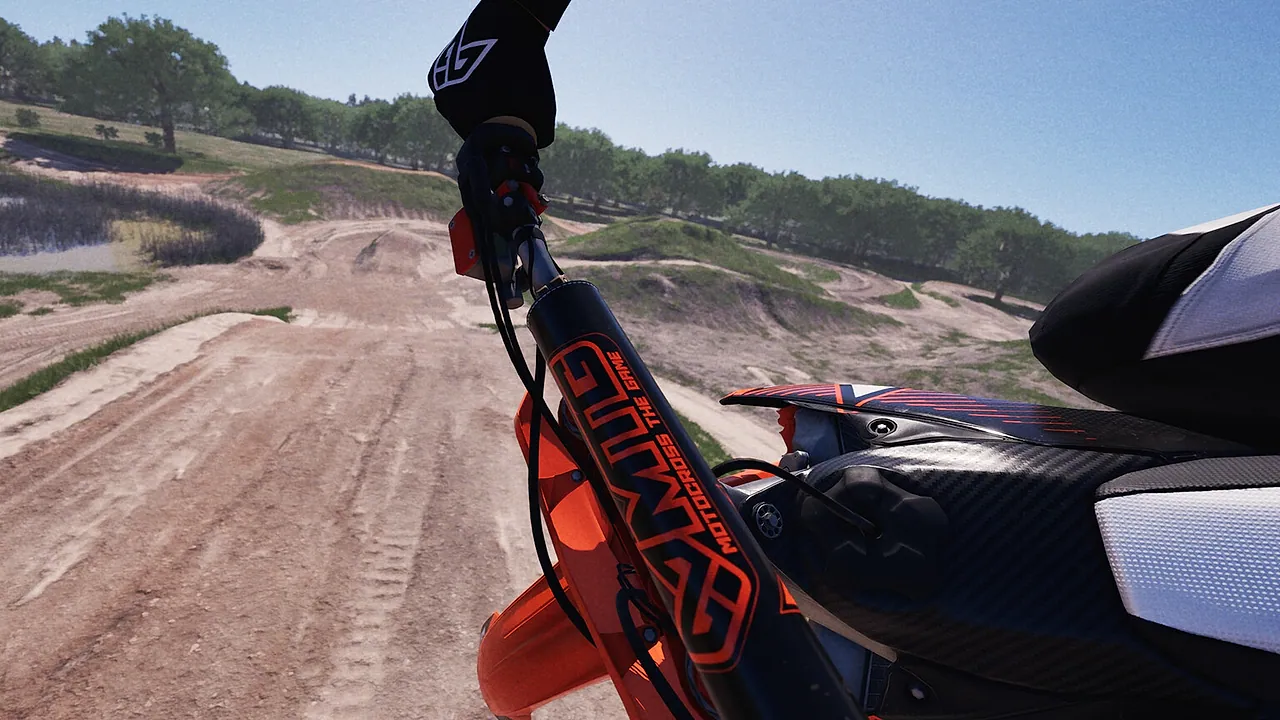
Avoid first-person cameras while you are learning. They are immersive, but they make it harder to judge body position and the angle of the bike. Once you know a track, try the first-person view for a session and see whether it helps you read the surface.
Field of view is a trade-off. A wider field of view shows more of the track but distorts the edges and makes objects look further away. Start around the default and adjust in small steps. If you find yourself braking too late, a slightly narrower field of view can help.
Motion blur, depth of field and film grain
Turn motion blur off for racing. It blurs the track precisely when you are moving fastest, and it can hide the moment when the front wheel leaves a rut. Depth of field is a cinematic effect with no competitive benefit. Film grain adds texture but reduces clarity.
If you stream or record, you can enable these effects for replays, not for racing.
Change one graphics setting, then ride three laps on the same track at the same pace. If you cannot feel or see a difference, the setting is not worth its frame cost.
Audio is a performance setting
The sound design is one of the game's strengths. The engine note tells you what the bike is doing before you see it, and tyre noise tells you when the rear is spinning. A quiet mix makes you rely on vision alone.
Raise the engine and tyre channels relative to music. If the game has a dynamic range or night mode, leave it off; you want the full contrast between a bogging engine and a screaming one. Headphones are better than speakers for hearing the rear tyre.
Music is fine in menus, but turn it down during races. You need the audio bandwidth for the bike.
Controller response
Three settings matter more than any graphics option:
Deadzone. Set it just above the point where the bike stops moving with your hands off the stick. Too small and the bike steers itself; too large and small corrections disappear.
Steering linearity. A smooth curve gives you more precision near centre. An aggressive curve makes the bike feel twitchy in ruts.
Trigger saturation. If your throttle trigger reaches full throttle before the end of its travel, you lose modulation. Check the input display and calibrate if the game offers it.
Assists are settings too
It is tempting to treat assists as a difficulty preset and never open the menu again. In Motocross The Game, the assist suite is adjustable, and the best setting is the one that lets you learn without hiding the next skill.
If you are learning, keep throttle and clutch assists high enough to prevent constant stalls, but reduce weight-transfer assist early. Weight transfer is the core skill of the game, and an assist that moves the rider for you delays your understanding of corner entry and exit.
Our assists guide→ has a step-by-step plan for turning each system down.
Network settings for online races
Online racing uses dedicated servers, matchmaking and private lobbies. On your side, the priorities are a wired connection and a stable route to the server. Wi-Fi can work, but packet loss on a wireless link shows up as sudden bike movements that look like physics bugs.
Close background downloads before a race night. If your router supports it, give the game priority or use a wired connection. A lower average ping is useful, but a stable ping is more important; a connection that swings between 30 and 120 ms is harder to race on than a steady 80 ms.
A sensible starting profile
| Setting | Starting point | Why |
|---|---|---|
| Frame cap | 60 or 120, whichever you can hold | Stable input latency |
| Shadows | Medium | Large frame cost, small competitive gain |
| Textures | High if VRAM allows | Read the dirt surface |
| Motion blur | Off | Keeps the front wheel visible |
| Depth of field | Off | No competitive benefit |
| Camera | Chase, slightly closer than default | Read the front wheel and rut |
| Music | Low during races | Hear the engine and tyres |
| Deadzone | Just above drift | Precise but stable steering |
| Throttle assist | High while learning | Prevent wheelspin loops |
| Weight-transfer assist | Medium, reduce early | Learn the core skill |
FAQ
Should I use VSync? Use it if you see tearing and your frame rate is comfortably above your refresh rate. If VSync adds input lag that you can feel, use a frame cap instead. On a variable refresh monitor, enable the monitor's adaptive sync and cap a few frames below the maximum refresh.
Is 30 FPS playable? It is playable, but not ideal for a sim that asks for precise weight transfer. If you are stuck at 30, lower resolution and shadows before you lower the frame rate further.
Does the game support ultrawide? Unreal Engine 5 games usually support ultrawide, but check the current build's options. A wider aspect ratio helps you see the track edges, but it can also distort the sense of speed.
Will my settings carry over from the demo or beta? There is no public demo currently listed. If you played a beta, check whether the build uses a separate settings folder; a fresh Early Access install may start from defaults.
Sources
Official source: Steam store page and official site, checked November 10, 2026. Menu labels may change during Early Access.